Last updated: October 11, 2026
What are roles in Mitti?
Roles define what users can do in Mitti. In most organizations, team members need different levels of access depending on their responsibilities. For example, a site supervisor shouldn't have the same controls as a global admin, and a frontline worker shouldn't have the same access as either. Roles let organizations match each user's permissions to their actual job. There are two types of roles:
Global roles apply across your entire organization.
Group and site roles apply only within the sites or groups a user is assigned to.
Assigning these roles allows organizations to hand user management to site supervisors or regional managers without giving them full admin access. It keeps control close to the people who run each group or site, while admins stay focused on the wider organization.
For existing users, the Permissions tab is now called Roles, and permission sets are now called global roles that work exactly the same way.
Get started as an admin
As an admin, you can set up roles across your organization and delegate day-to-day user management to your site and group managers.
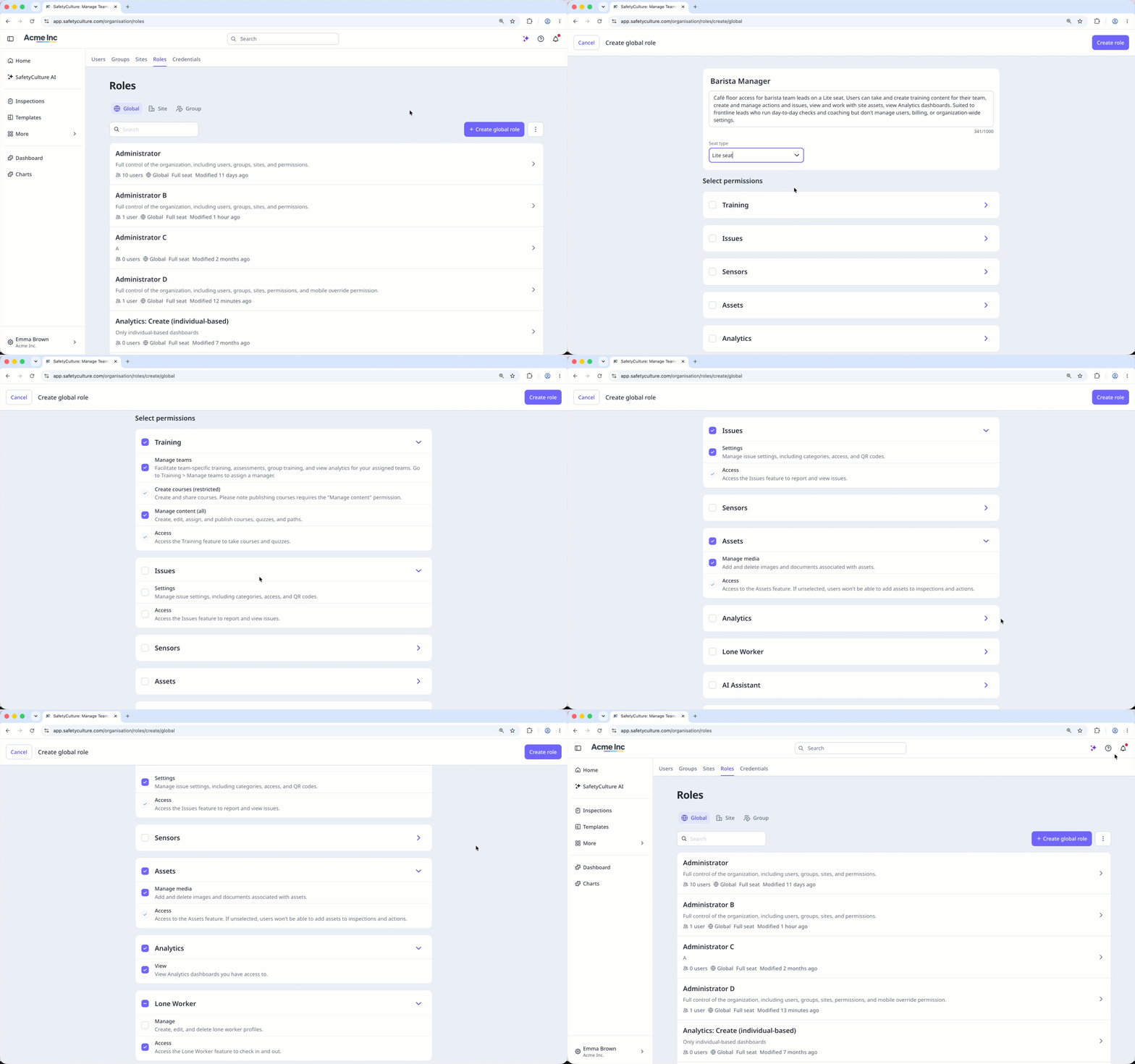
Create your roles
Before you can delegate user management, set up global roles that apply across your organization. Then set up site or group roles that let managers handle users within their own site or group.
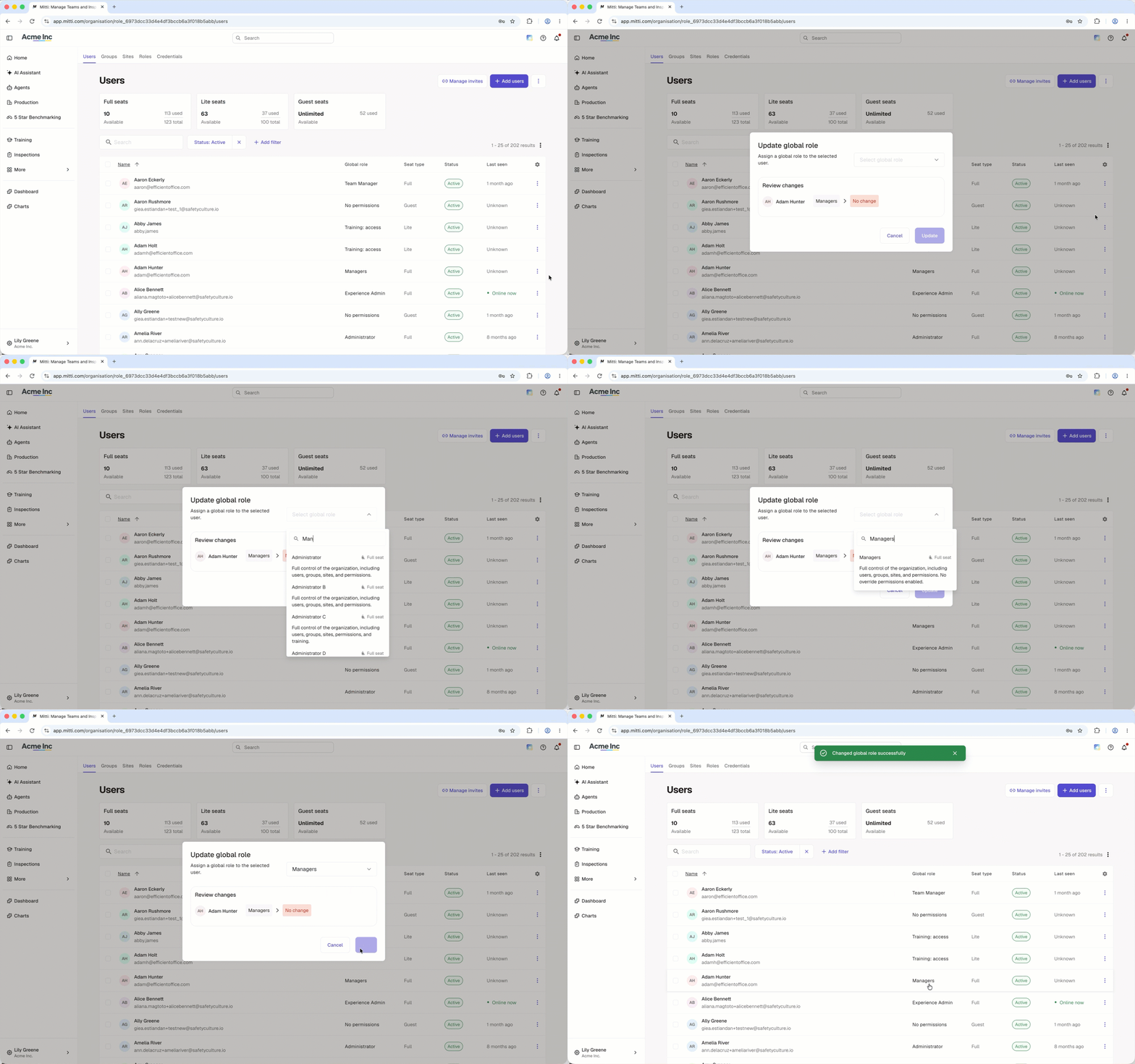
Assign roles to your users
Once your roles are set up, assign them to users based on the sites and groups they belong to. Site and group managers can then manage users within their assigned sites or groups, without needing global roles.
Get started as a site manager
As a site manager, you can manage the users and files within the sites you're responsible for, without needing full admin access to your organization.
Manage users in your site
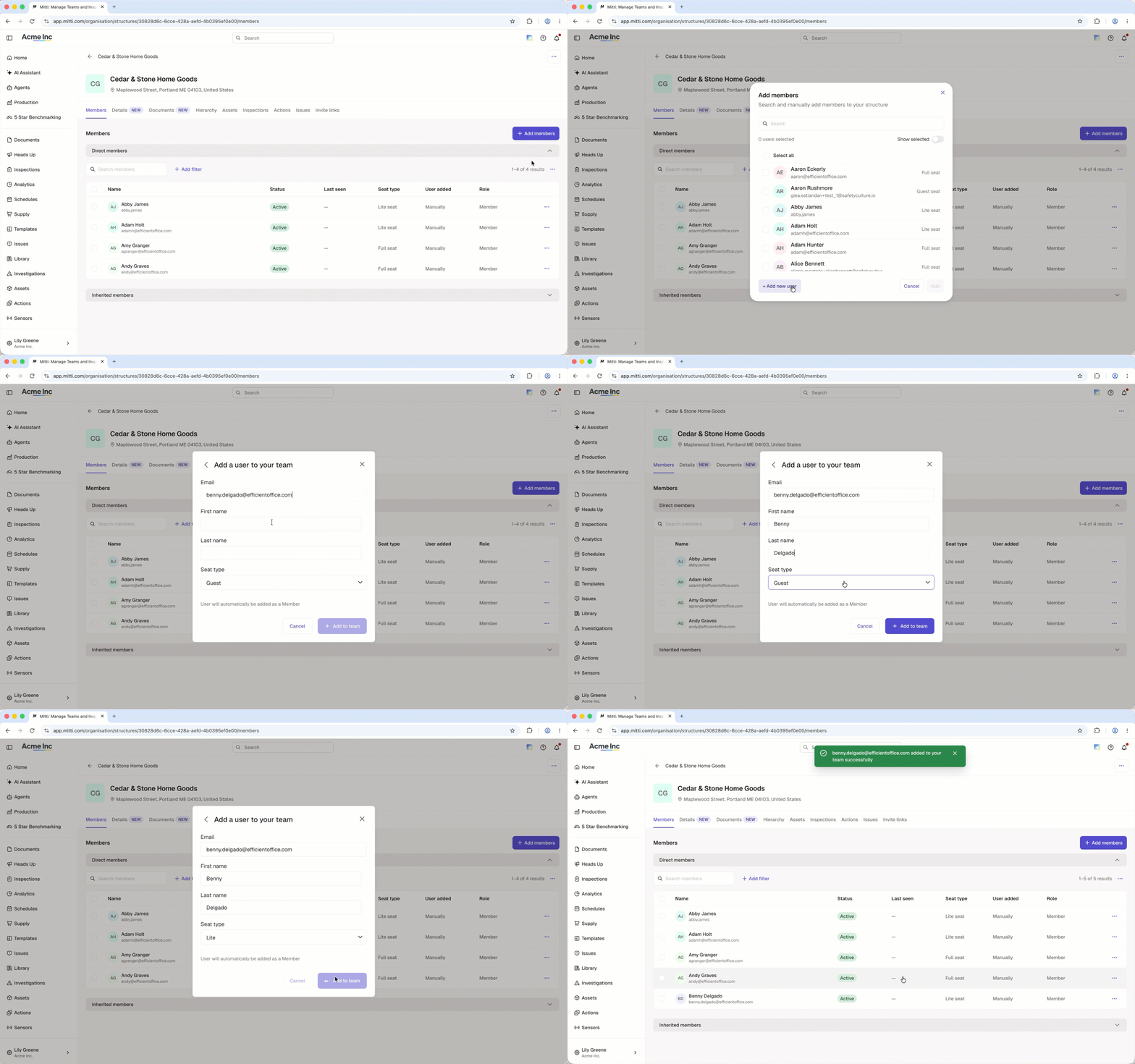
Add users and edit their details
You can add new users to your organization and assign them directly to your site, and manage invite links as needed. You can also view each user's profile and update their details, including name, time zone, notification preferences and device settings, and user fields.
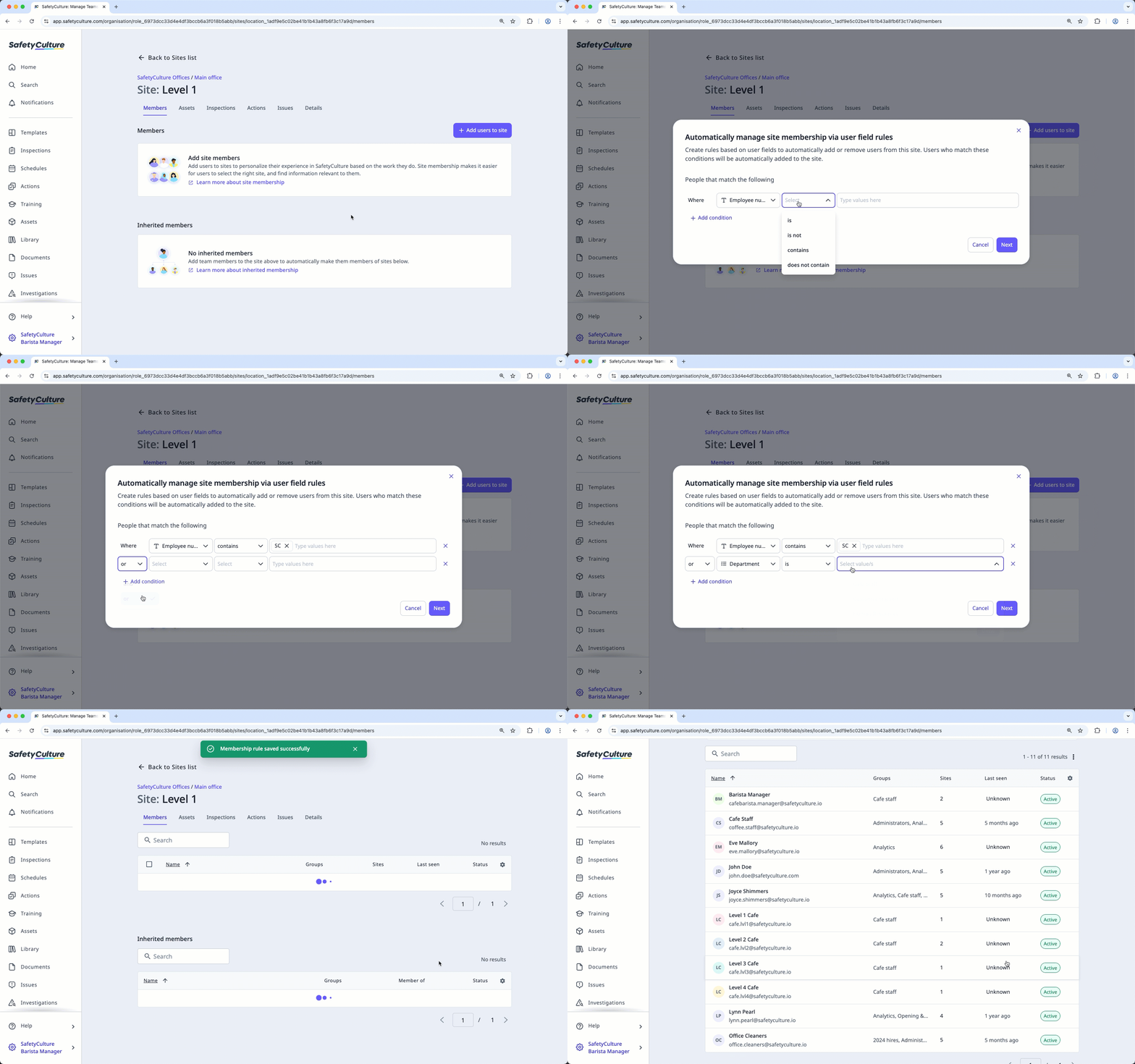
Manage site membership
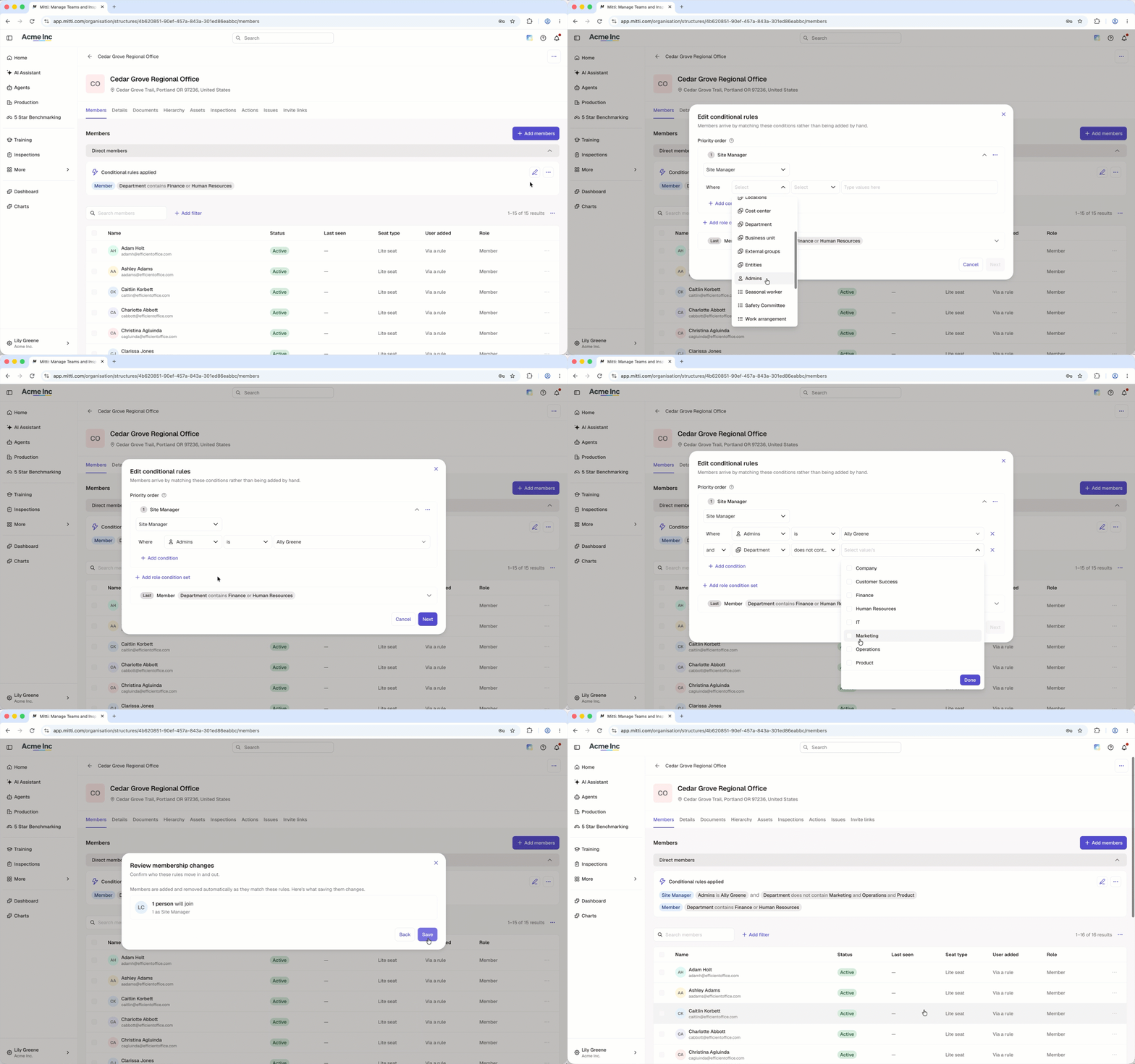
Add or remove site members directly, or manage site membership via rules to keep it up to date automatically as your organization changes.
You can also assign roles to site members to control what they can do within the site.
Deactivate users
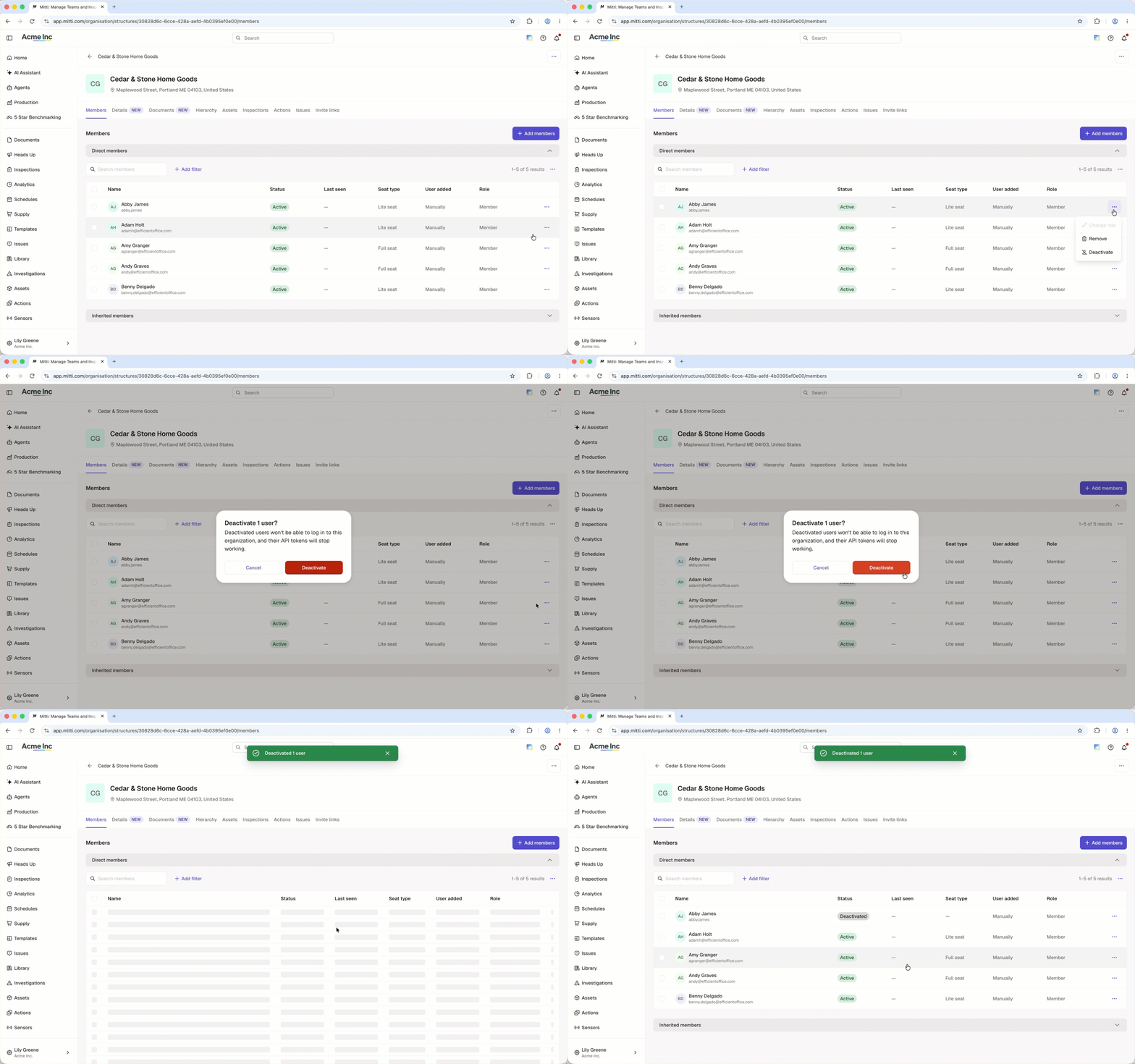
When someone leaves your organization or your site, deactivate their user account to remove their access while retaining their historical data.
Add or link files to your site
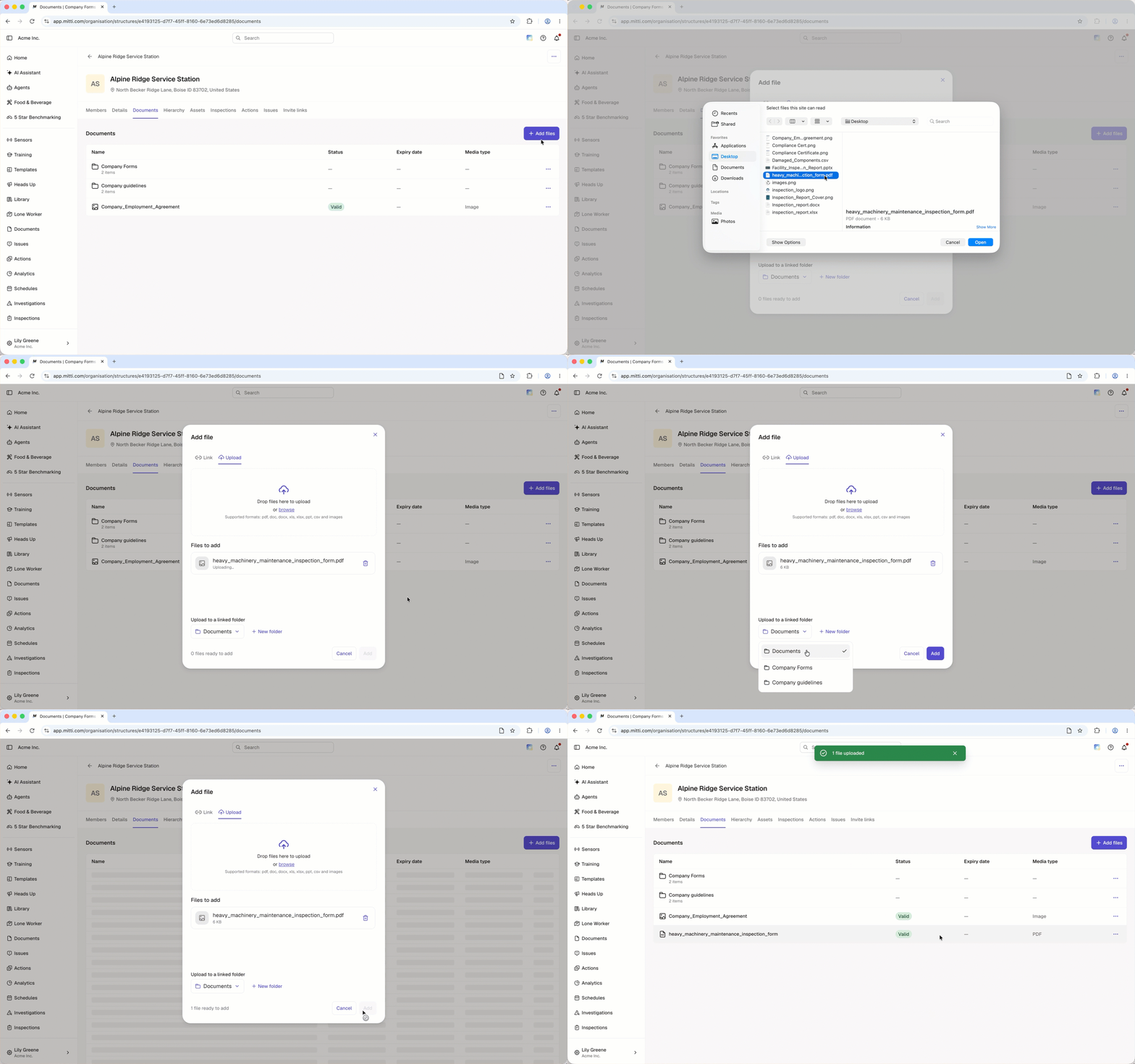
You can add or link files and folders to your site to control which sites can access them. This keeps your files organized so site members and managers can find what they need in one place.
Manage inherited sites
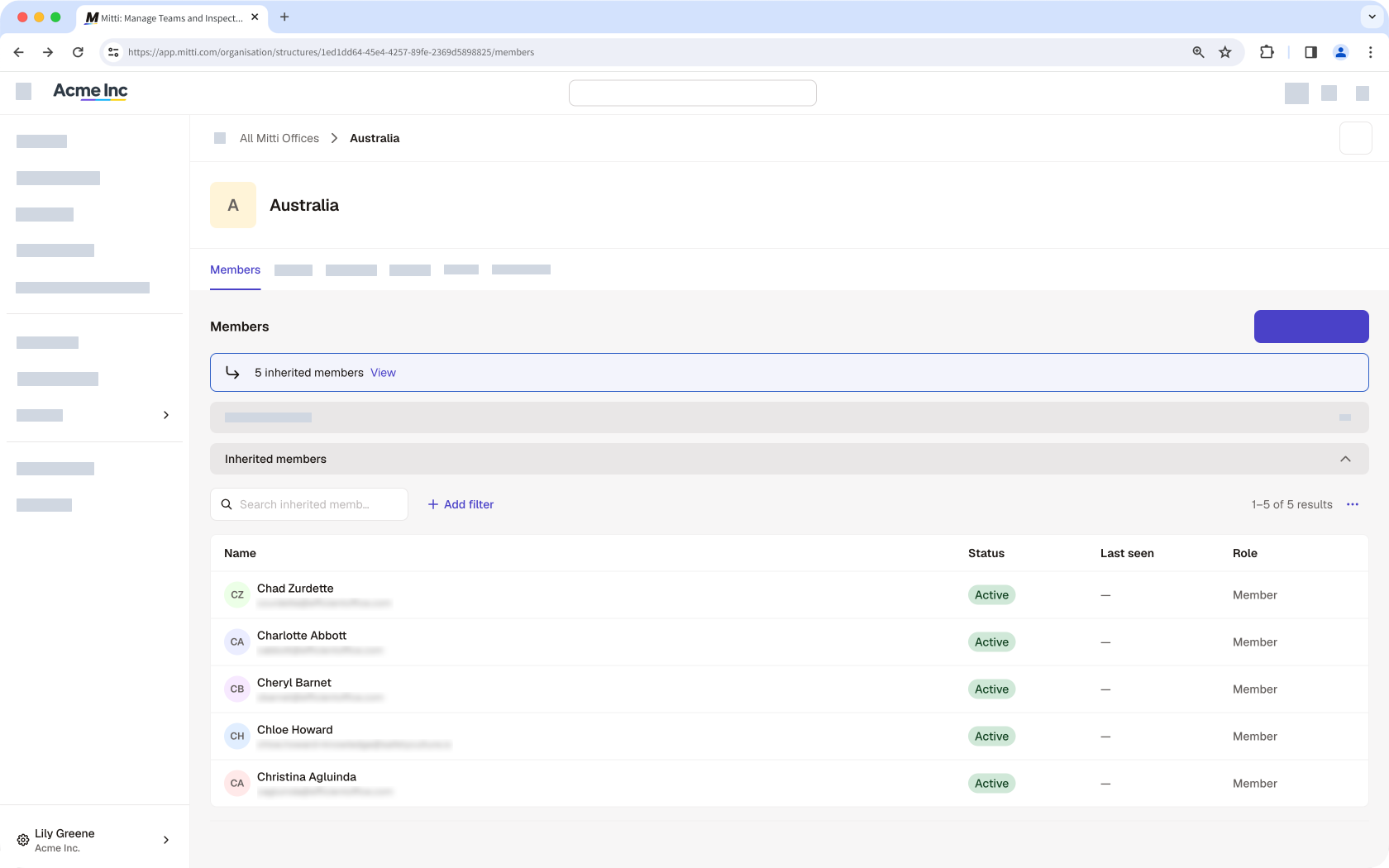
You can manage membership for sites below the ones you manage directly. Your roles also extend automatically down the site hierarchy, so you don't need to set access site by site.
Get started as a group manager
As a group manager, you can manage the users within the groups you're responsible for, keeping group membership accurate without needing full admin access to your organization.
Manage users in your group
Add users and edit their details
You can add users to your organization and assign them directly to your group, then manage invite links as needed. You can also view a user's profile and update their details, including name, time zone, notification preferences, and user fields.
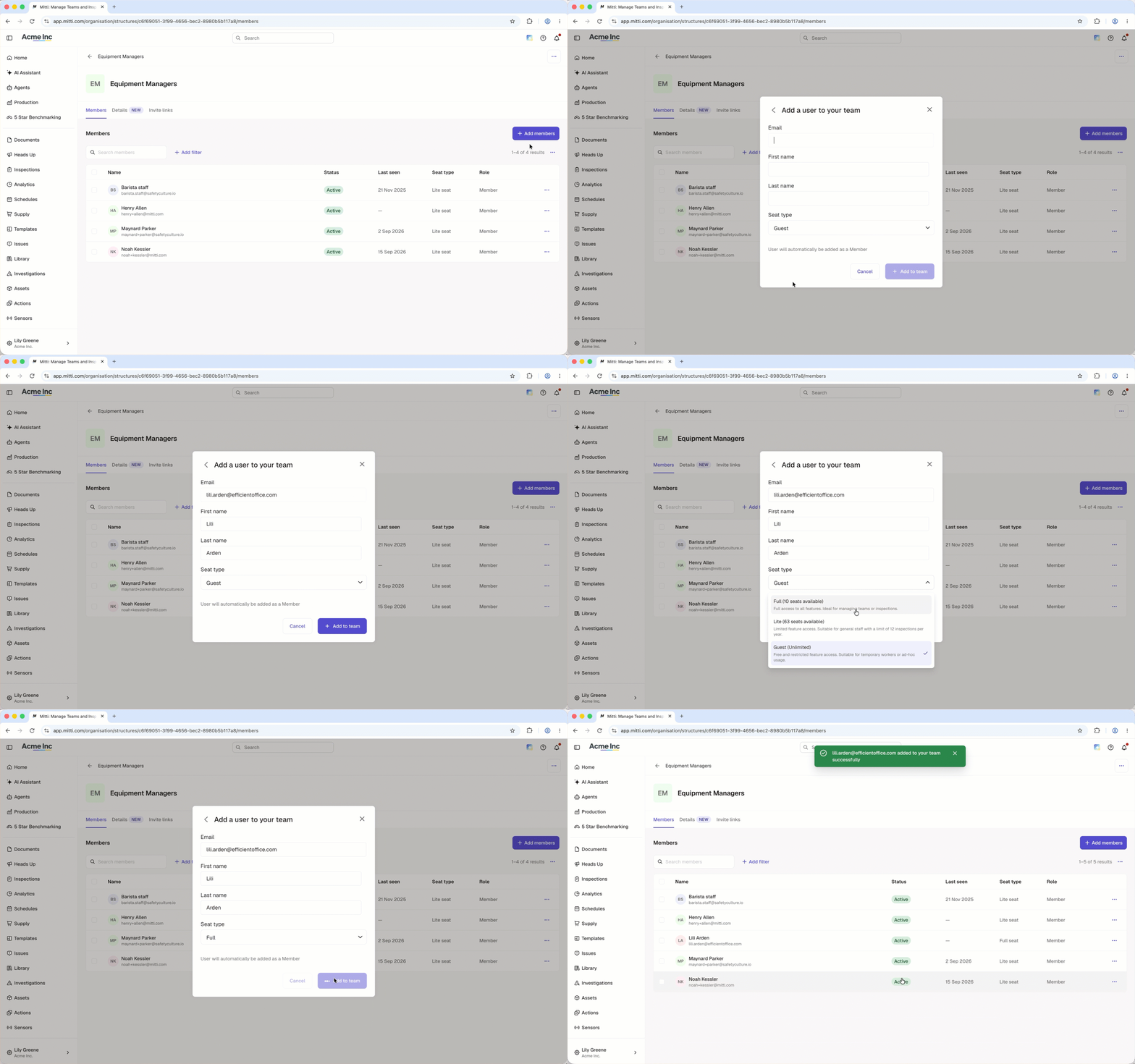
Manage group membership
You can add or remove group members directly, or set up membership rules so group membership stays current automatically as your organization changes.
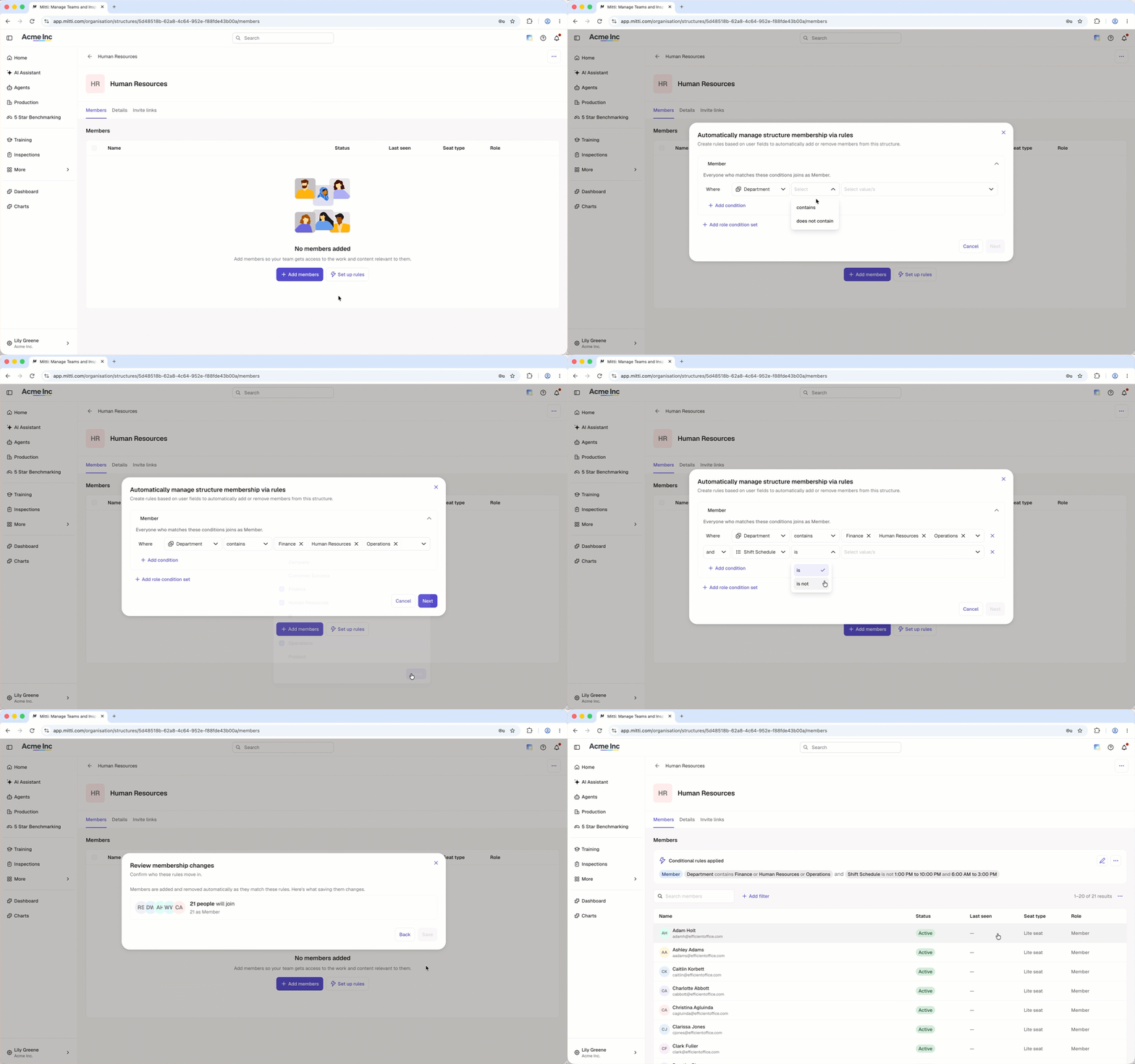
Assigning roles to group members also lets you control what they can do within the group.
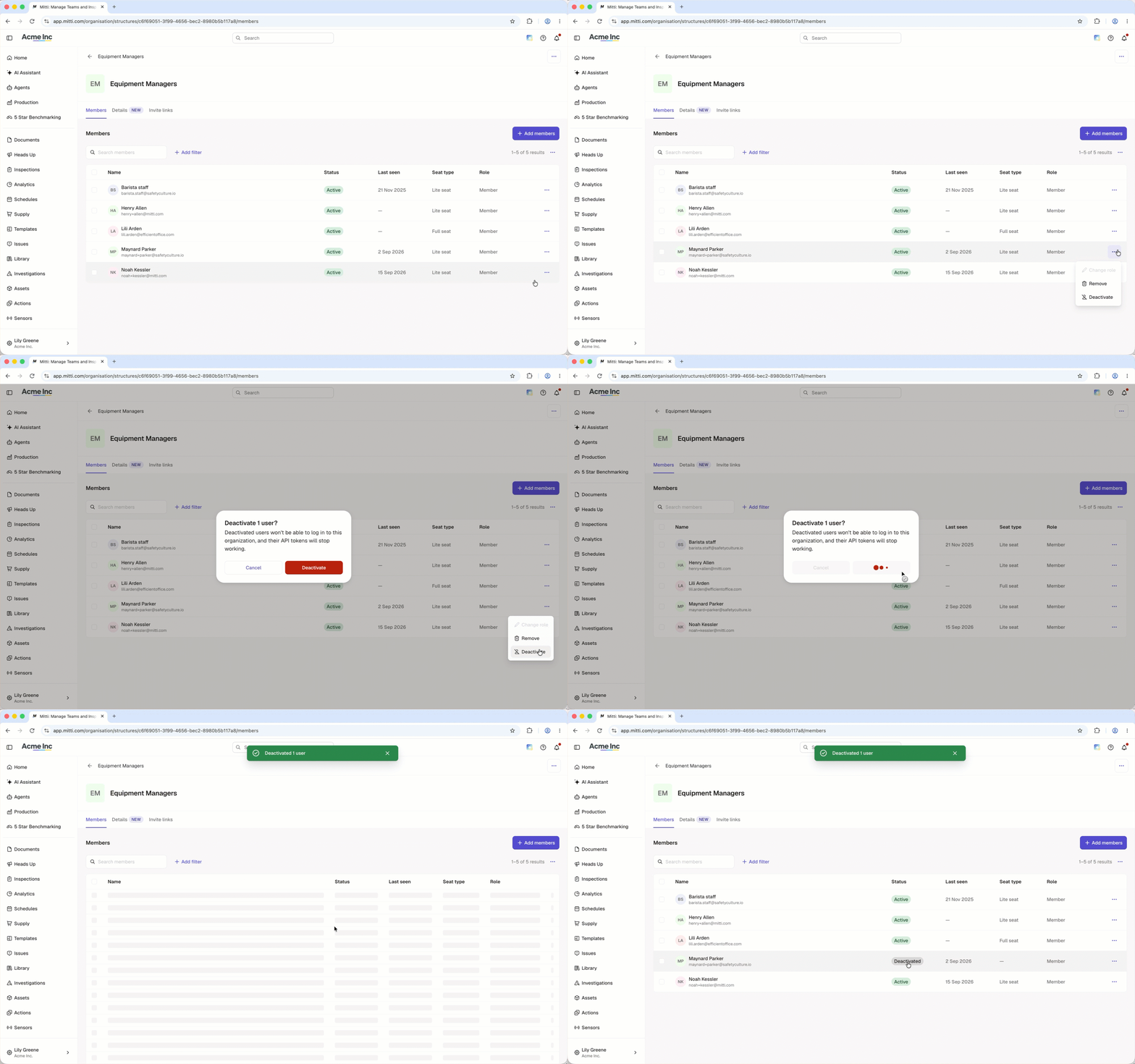
Deactivate users
When someone leaves your organization or your group, deactivate their user account to remove their access while retaining their historical data.
Need more help?
Was this page helpful?